Step 2 - Create keyboard navigation for content on the Home screen
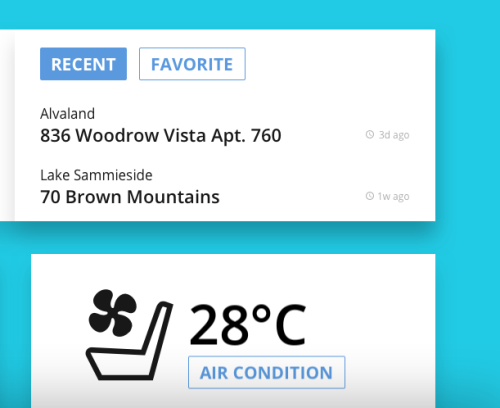
In this step of the tutorial you create keyboard navigation to switch between the screens showing the recent and favorite destinations on the Home application screen. You set a key to open and close the window which shows the sliders for adjusting the air conditioning temperature.
Use keyboard keys to navigate between the Recent and Favorite screens
In this section you create keyboard navigation to switch between the screens showing the recent and favorite destinations.
To use keyboard keys to navigate between the Recent and Favorite screens:
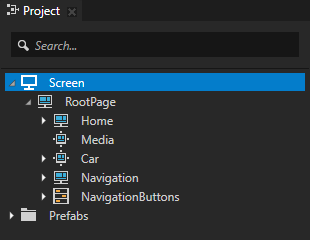
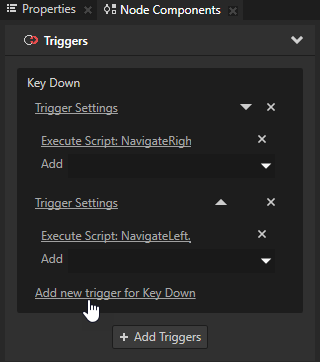
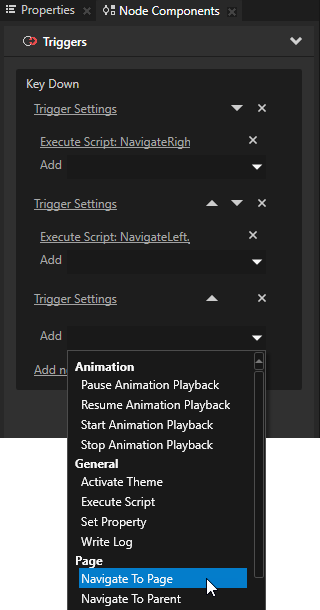
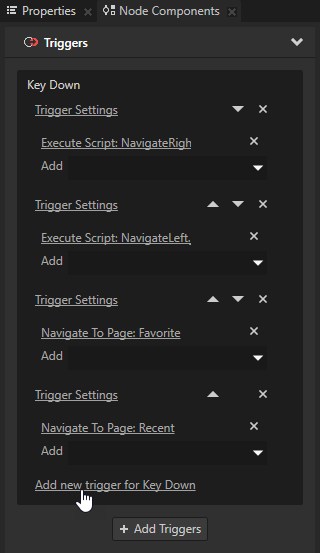
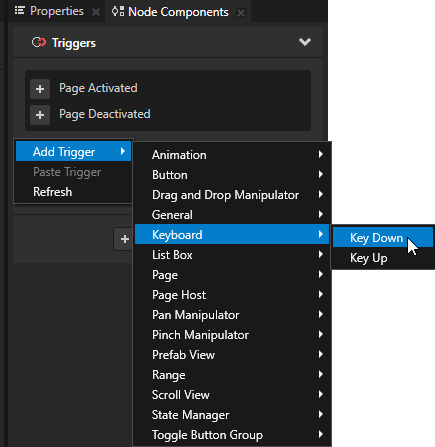
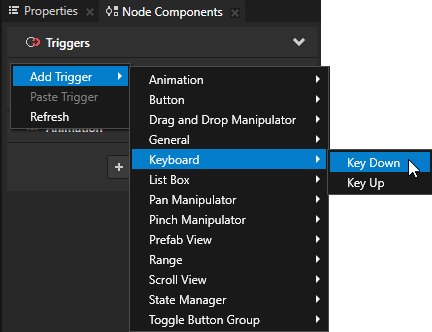
In the Project select the Screen node and in the Node Components click Add new trigger for Key Down to add a Key Down trigger.
In the Trigger Settings Editor for that trigger click Add condition and add two conditions:
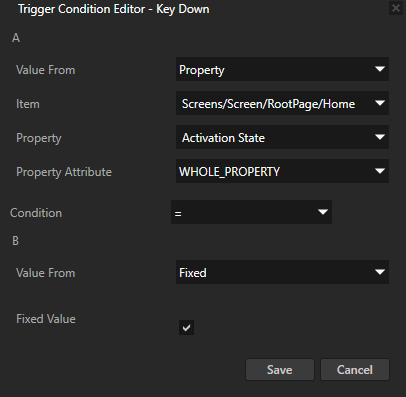
In the Trigger Condition Editor for the first condition set:
A
Item to Screens/Screen/RootPage/Home
Property to Activation State
Condition to =
B
Value From to Fixed
Enable the Fixed Value checkbox.
Click Save.
Kanzi sets off this trigger only when the HomePage Host is active. When you press the Up Arrow key when any other Page node is active, the application does not navigate to the FavoritePage.
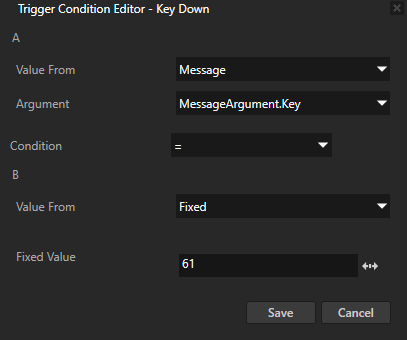
In the Trigger Condition Editor for the second condition set:
A
Value From to Message
Condition to =
B
Value From to Fixed
Fixed Value to 61. You use the key code for the Up Arrow key.
Click Save.
Kanzi sets off this trigger when the user presses the Up Arrow key.
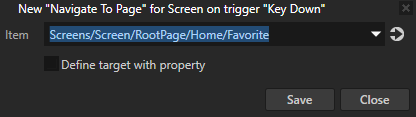
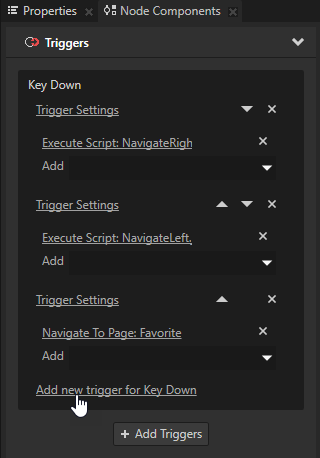
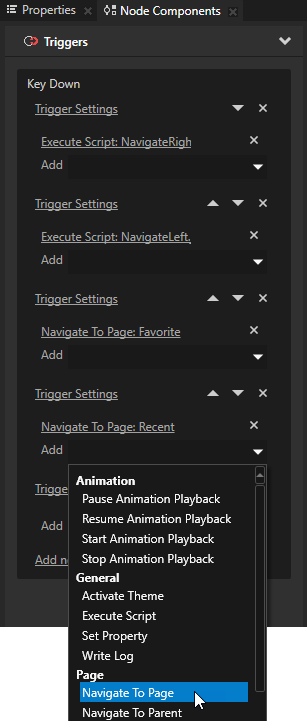
In the Node Components for the Key Down trigger you added at the beginning of this step add the Navigate to Page action and in the action settings set the Item to the Screens/Screen/RootPage/Home/Favorite node. You navigate to the Favorite application screen when the user presses the key you set in the condition when Kanzi sets off this trigger. You set this condition in the next step.
In the Project select the Screen node and in the Node Components add another Key Down trigger.
In the Trigger Settings Editor for that trigger add two conditions:
In the Trigger Condition Editor for the first condition set:
A
Item to Screens/Screen/RootPage/Home
Property to Activation State
Condition to =
B
Value From to Fixed
Enable the Fixed Value checkbox.
Click Save. You set the trigger to be set off only when the HomePage Host is active. When you press the Up Arrow key when any other Page node is active, the application will not navigate to the RecentPage.
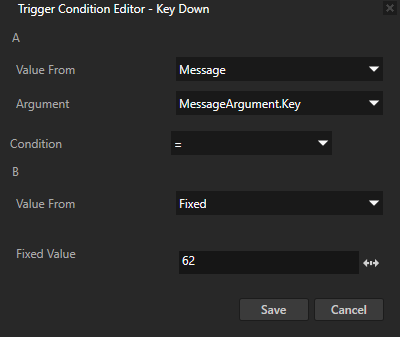
In the Trigger Condition Editor for the second condition set a key to set off the trigger, but set the Fixed Value to 62 to set off the trigger when the user presses the Down Arrow key. You navigate to the Recent application screen when the user presses the Down Arrow key.
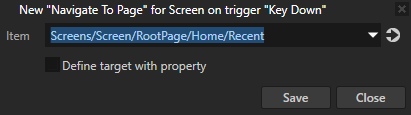
Add to the trigger a Navigate to Page action, and set the Item to the Screens/Screen/RootPage/Home/Recent node. You set the application to navigate to the RecentPage when the user presses the key you define in the Trigger Condition Editor.
In the Preview press the Up Arrow and Down Arrow keys when the HomePage is active to navigate between the Recent and Favorite screens on the Home screen of the application.
Set a key to open the air conditioning settings
In this section you set the AirCondition window to open when the user presses a key on their keyboard.
To set a key to open the air conditioning settings:
In the Project select the Screen node and in the Node Components another Key Down trigger.
In the Trigger Settings Editor for that trigger add two conditions:
In the Trigger Condition Editor for the first condition set:
A
Item to Screens/Screen/RootPage/Home
Property to Activation State
Condition to =
B
Value From to Fixed
Enable the Fixed Value checkbox.
Click Save.
You navigate to the DriverPage only when the HomePage Host is active. If you press the Enter key when any other Page is active, the application does not navigate to the DriverPage.
In the Trigger Condition Editor for the second condition set:
A
Value From to Message
Condition to =
B
Value From to Fixed
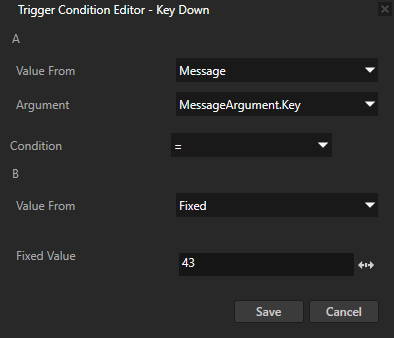
Fixed Value to 43.
Click Save.
You set the application to open the AirCondition window when the user presses the Enter key on their keyboard.
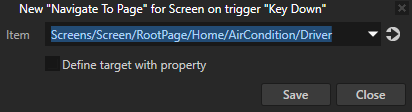
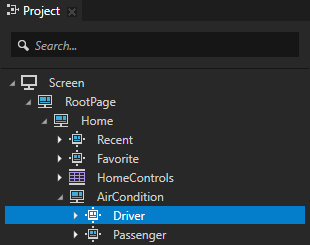
In the Node Components add to the Key Down trigger you created in the first step a Navigate to Page action and set the Item to Screens/Screen/RootPage/Home/AirCondition/Driver. You set the application to navigate to the AirCondition > DriverPage node when the user presses a specific key on their keyboard. You defined the key in the previous step.
In the Preview press the Enter key to navigate to the Driver application screen when the HomePage Host is active.
Set a key to close the air conditioning settings
In this section you set the AirCondition screen to close using a keyboard key.
To set a key to close the air conditioning settings:
In the Project > RootPage > Home > AirCondition select the Driver node and in the Node Components add a Key Down trigger.
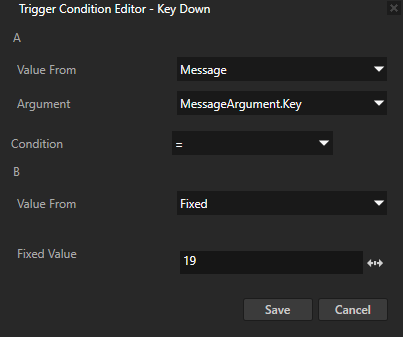
In the Trigger Settings for the trigger you created in the previous step click Add condition and in the Trigger Condition Editor set:
A
Value From to Message
Condition to =
B
Value From to Fixed
Fixed Value to 19.
Click Save.
You set the application to close the AirCondition window when the user presses the E key.
Add to the trigger an Execute Script action, create a script, and in the Script Editor use this script:
// Get the Screen node.
screen = node.lookupNode('#Screen');
// Set focus to the Screen node.
screen.trySetFocus();
You set the application to execute a script which sets focus to the Screen when the trigger is set off. This way the focus does not stay on the Driver or PassengerPage nodes when the AirCondition application screen closes. At the end of this tutorial step you set focus to the DriverPage when the user navigates to the AirCondition application screen.
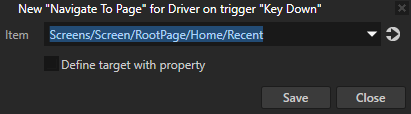
Add to the trigger a Navigate to Page action, and set the Item to Screens/Screen/RootPage/Home/Recent. You set the application to navigate to the Recent node in the Home node.
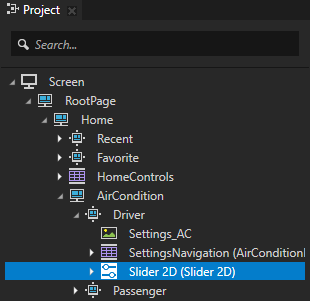
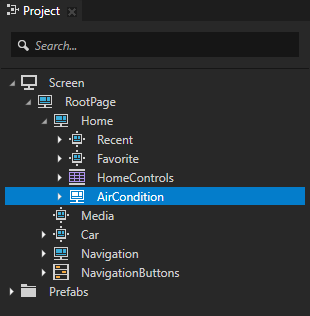
In the Project > RootPage > Home > AirCondition > Driver select the Slider 2D node and in the Node Components add a Key Down trigger. You use this trigger to close the AirCondition window when the Slider 2D node has focus.
In the Trigger Settings Editor add a condition to set off the trigger when the user presses the E key on the keyboard.
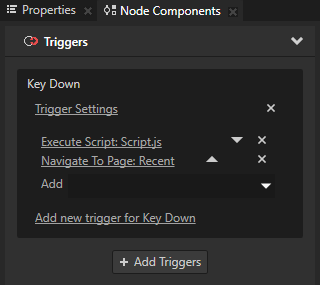
Add to the Key Down trigger you created in the previous step the actions you need to close the AirCondition window when the Slider 2D node has focus:
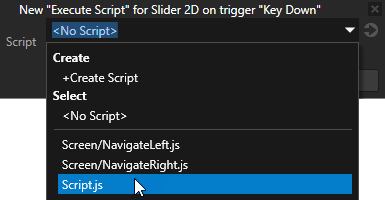
An Execute Script action and use the Script.js script you created in step 3. You set Kanzi to execute a script which sets focus to the Screen when the trigger is set off. This way the focus does not stay on the Slider 2D node when the AirCondition window closes.
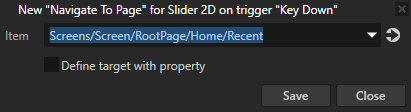
A Navigate to Page action and set the Item to Screens/Screen/RootPage/Home/Recent. You set Kanzi to navigate to the Recent in the Home node.
Select the Slider 2D node and from the Node Components copy and paste the Key Down trigger you created in the previous steps to the Project > RootPage > Home > AirCondition > Passenger > Slider 2D node. You use the same trigger for the Slider 2D on the PassengerPage to close the AirCondition window when that Slider 2D node has focus.
In the Project > RootPage > Home select the AirConditionPage Host node and in the Node Components add to the Page Activated trigger an Execute Script action. The Page Activated trigger is set off when a Page or Page Host node becomes active.
Create a script and in the Script Editor use this script:
// Get the DriverPage node.
var driverPage = node.lookupNode('#Driver');
// Set focus to the DriverPage node.
driverPage.trySetFocus();
You use this script to set focus to the DriverPage node when the AirConditionPage Host is activated. When you navigate to the DriverPage, you can use the same keyboard keys which you have defined in other parts of the application. In the next step of this tutorial you set the Right Arrow and Left Arrow keys to navigate between the Driver and Passenger application screens.
Organize the script files in your Kanzi Studio project
In this section you rename the scripts you created in this step of the tutorial and create folders for those scripts.
To organize the script files in your Kanzi Studio project:
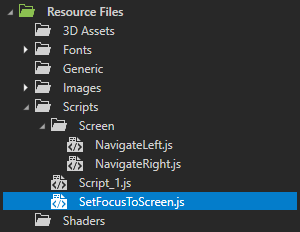
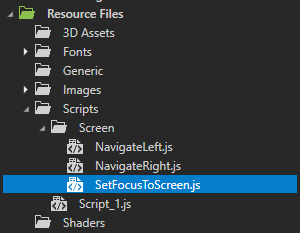
In the Library > Resource Files > Scripts rename:
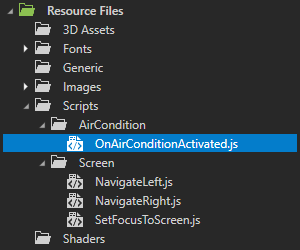
Script.js to SetFocusToScreen.js, and drag it to the Screen folder.
Script_1.js to OnAirConditionActivated.js.
In the Library > Resource Files > Scripts create a folder, name it AirCondition, and drag the OnAirConditionActivated.js script to that folder.
In the Preview press the Left Arrow and Right Arrow keys to navigate between the Home, Media, Car, and Navigation application screens. Use the Up Arrow and Down Arrow keys to navigate between the Recent and Favorite screens on the Home application screen.
Press the Enter key to navigate to the Driver screen from the Home application screen. Press the E key to close the AirCondition window.